My HDMI Port Is Not Working PS5 Troubleshooting Guide
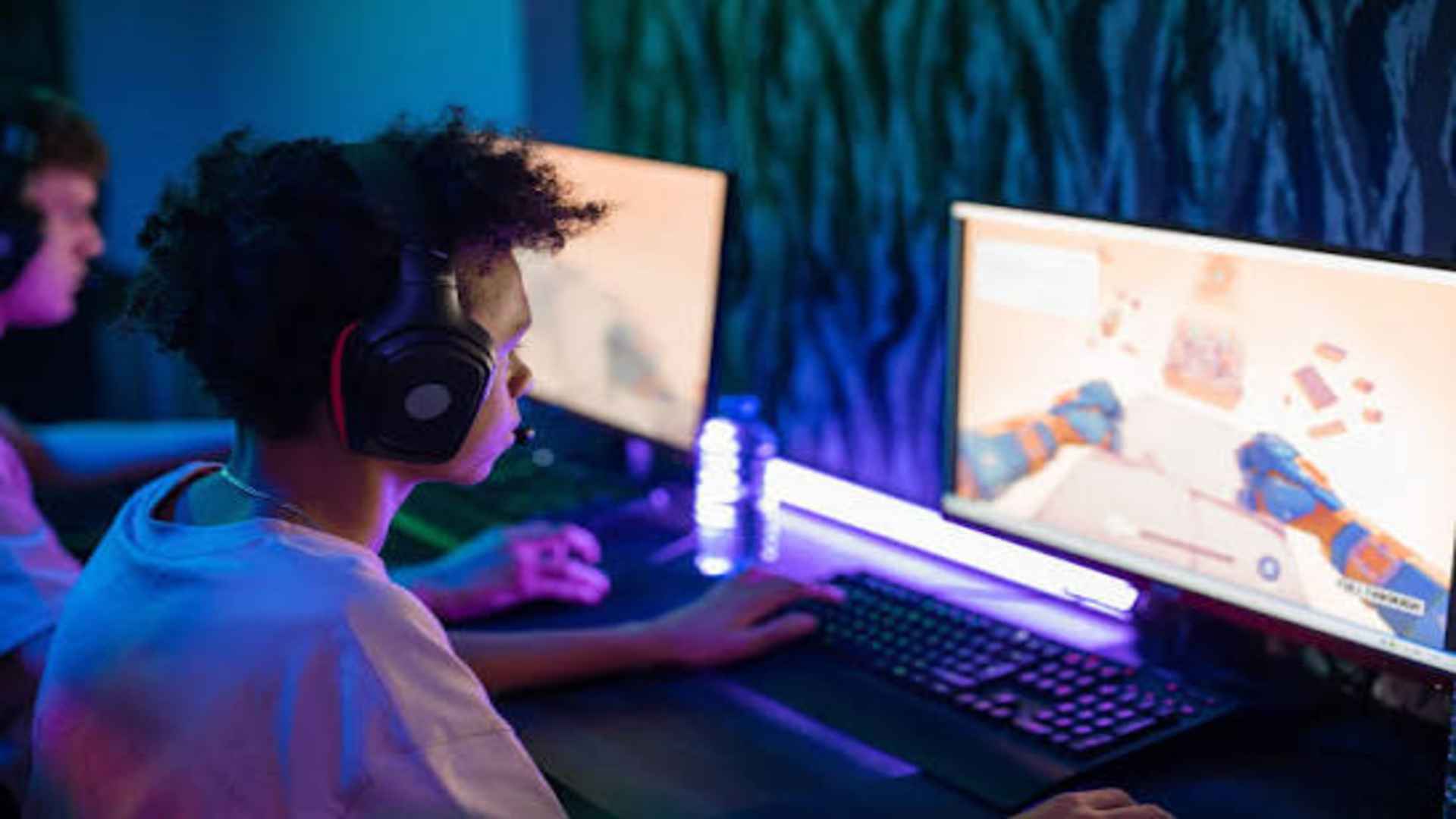
Experiencing a sudden black screen on your PlayStation 5 can be incredibly frustrating, especially when you are in the middle of a gaming session. This issue is frequently linked to communication problems between the console and your television or monitor setup. By systemically checking your hardware setup, you can isolate whether the problem stems from a simple configuration glitch or a physical hardware fault.
Inspecting Cables and Hardware Connections
The first step in diagnosing display failure involves checking the physical security of your video connections. Unplug the HDMI cable completely from both your console and the display monitor to inspect the pins for debris. Reinsert the cable firmly until you feel a complete click, ensuring it sits entirely flat within the port.
If the connection remains unstable, try swapping the current cord with a certified ultra high speed alternative. Testing different display monitors can quickly confirm if the problem is localized to your television hardware. When evaluating these setups, using a short cable can reduce structural strain on the delicate internal components of the console.
Resetting Your Hardware Handshake
Modern display devices use complex digital handshakes to verify authorization and stream video content properly. A minor software glitch can occasionally disrupt this signal sync, resulting in a continuous black screen display. Performing a complete power cycle can clear out temporary system errors effectively.
To execute a proper reset, power down your console fully instead of entering rest mode. Unplug all power cords from the wall outlet for a full sixty seconds to drain residual energy. Reconnect the devices afterward to let the system establish a completely fresh media connection link.
Utilizing PlayStation Safe Mode Settings
When normal startup routines fail to yield an image, booting into the integrated recovery menu provides a reliable workaround. Hold down the primary power button for roughly seven seconds until you hear a distinct second beep. Connect your controller using a direct USB cord to successfully navigate the diagnostic options provided.
Once inside the recovery system, change the default video output resolution down to a lower setting like 720p. You can also adjust high-definition copy protection properties within these menus to bypass stubborn handshake blocks. If you still encounter a total absence of signal across multiple monitors, the micro-soldering connections may require professional physical repair.